Rotate Credentials
Rotating your client credentials is a recommended security practice, and simply put involves generating new credentials for your app.
Tip
It is usually performed on a regular schedule and after certain events, like an employee leaving.
How to Rotate Your Credentials
In Wyzed, rotating your credentials involves the following steps:
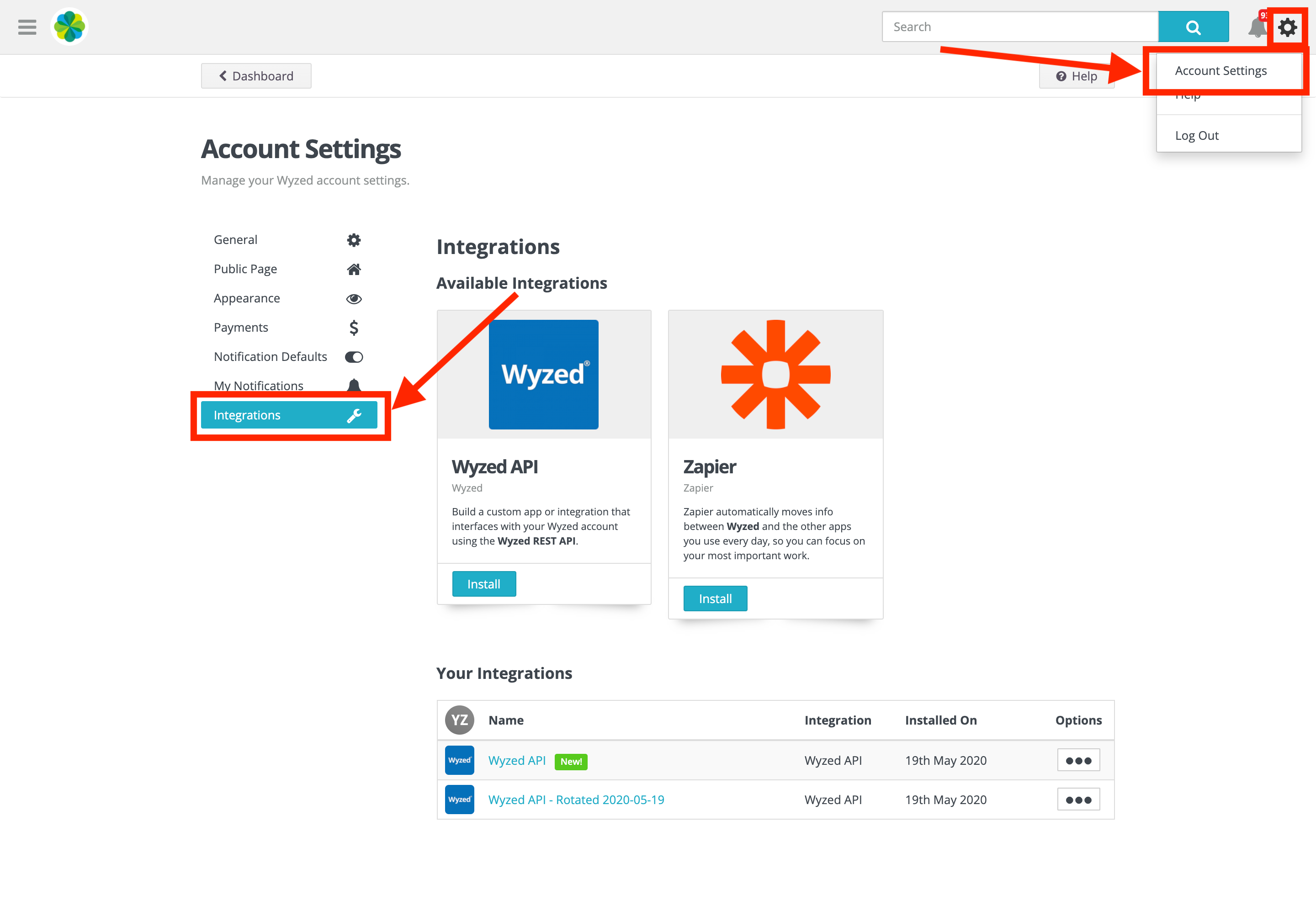
1. Navigate to Your Integrations
Navigate to Account Settings > Integrations.
2. Rename Existing Integration
Find your existing Wyzed API integration and rename it. This will make it easy to differentiate it from the new integration you're about to install.
Click Options > Rename Integration, then give it a unique name.
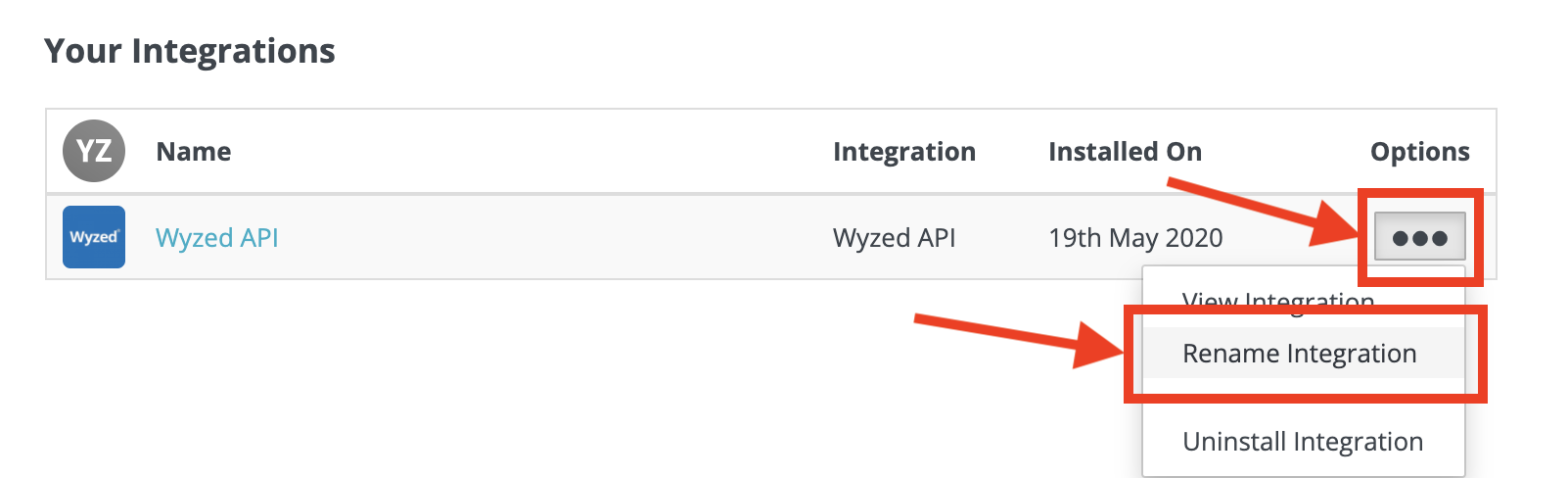
Above: Finding the rename option for an existing integration
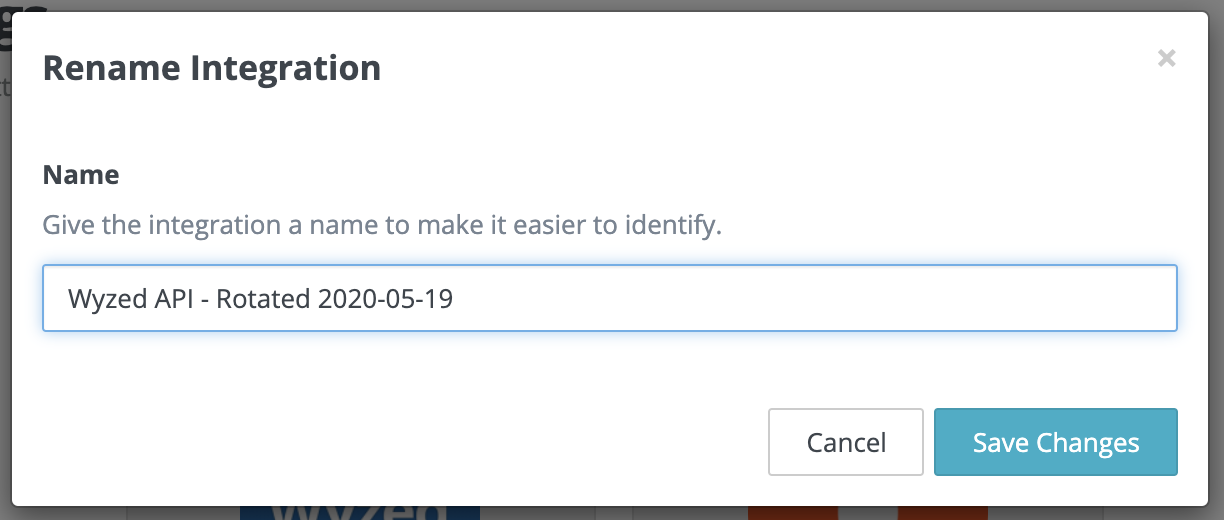
Above: An example of renaming the integration
Tip
Including the date you rotated the keys in the name might be helpful too.
3. Install a New API Integration
Reminder
Remember to copy the new credentials so you can update whichever app or service which is using your Wyzed API integration.
Install a new Wyzed API integration from the Available Integrations section.
Once it's installed copy it's credentials to a secure location and continue with the next stage below
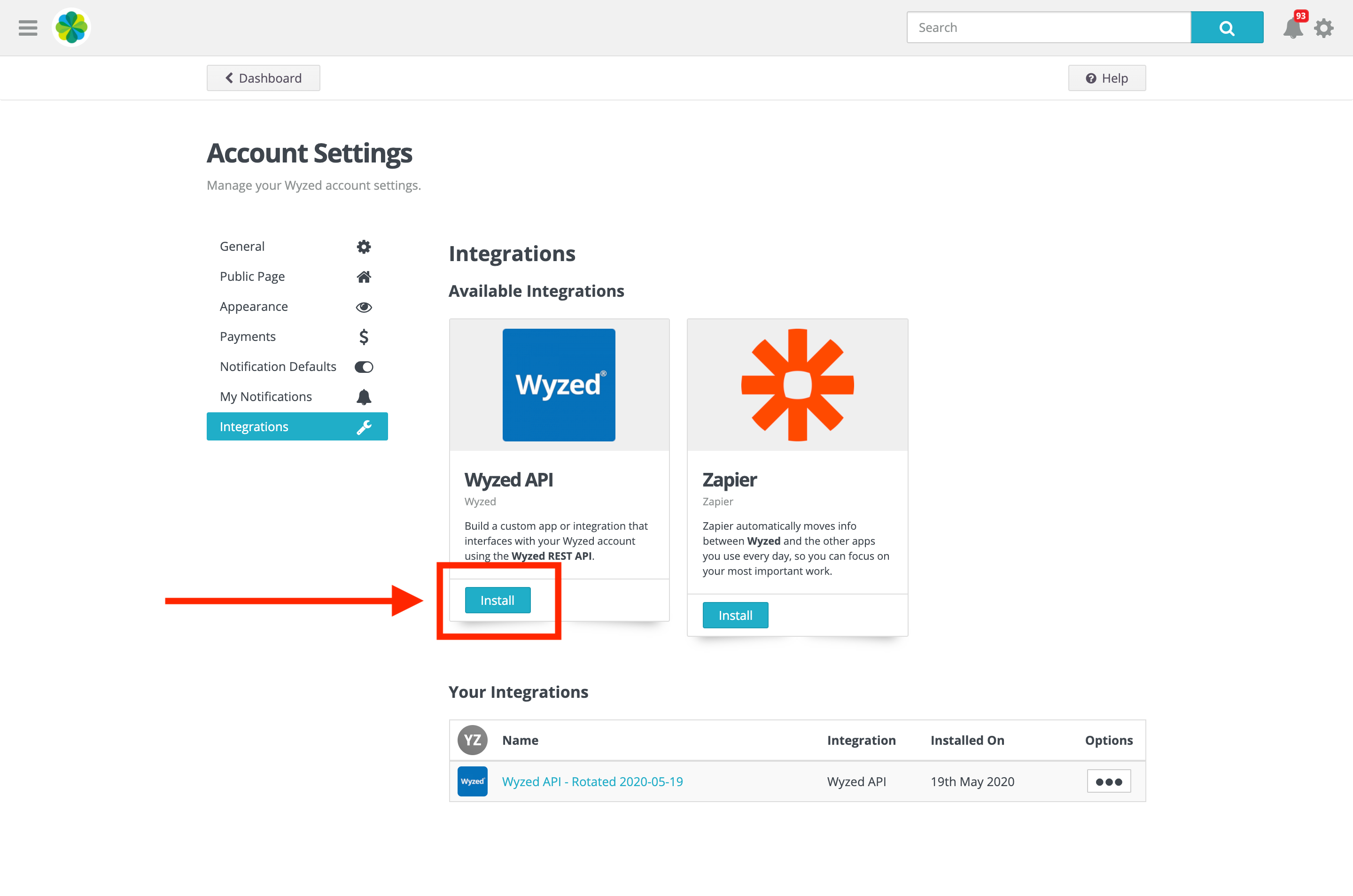
Above: Installing a new Wyzed API integration
4. Update Your App/Service
Update your app or service with the credentials you got from installing the new integration.
Keep the old integration around until that's done so it can continue to access Wyzed, then follow the steps below to delete it.
4. Delete the Old Integration
Once you're done updating your app with the new credentials, delete the old integration. This will make sure it's credentials can no longer access Wyzed.
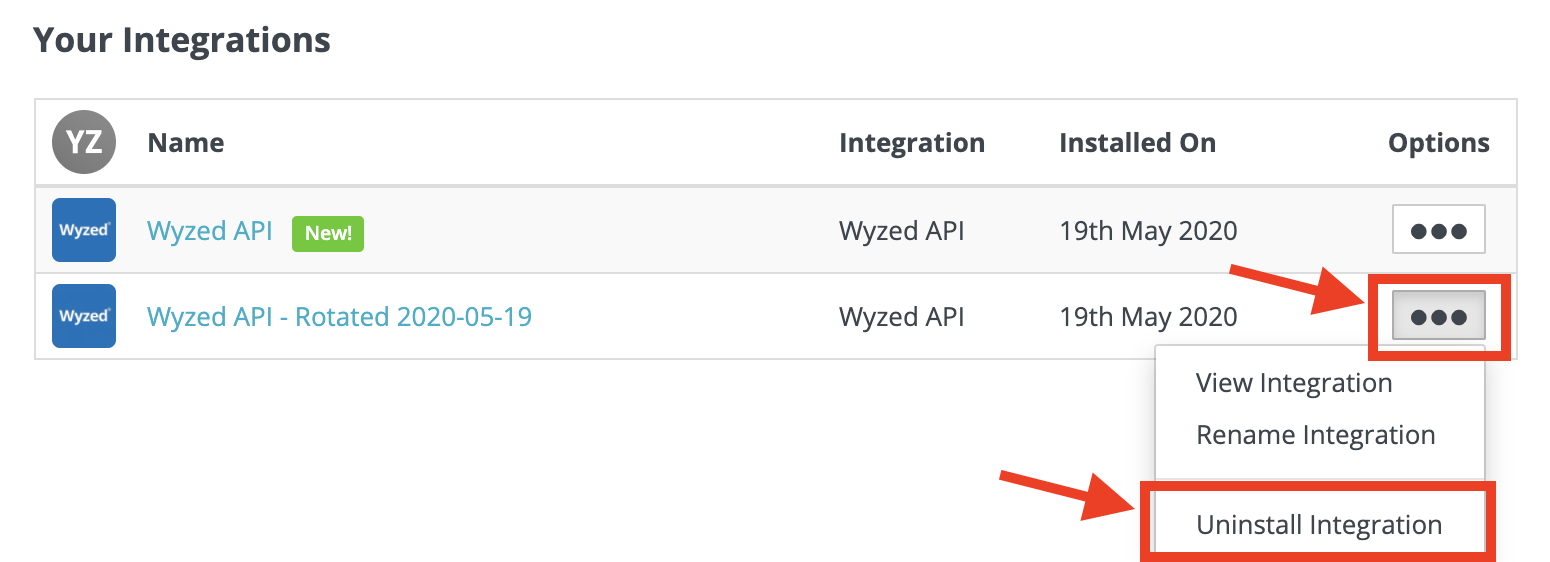
Above: Deleting the old Wyzed API integration
All Done
Thats it. Your credentials have been rotated and the old ones can no longer access your system.